Organizing with Tags
Tags give you a visual way to categorize and track the status of timeline items. They appear as colored badges next to item names.
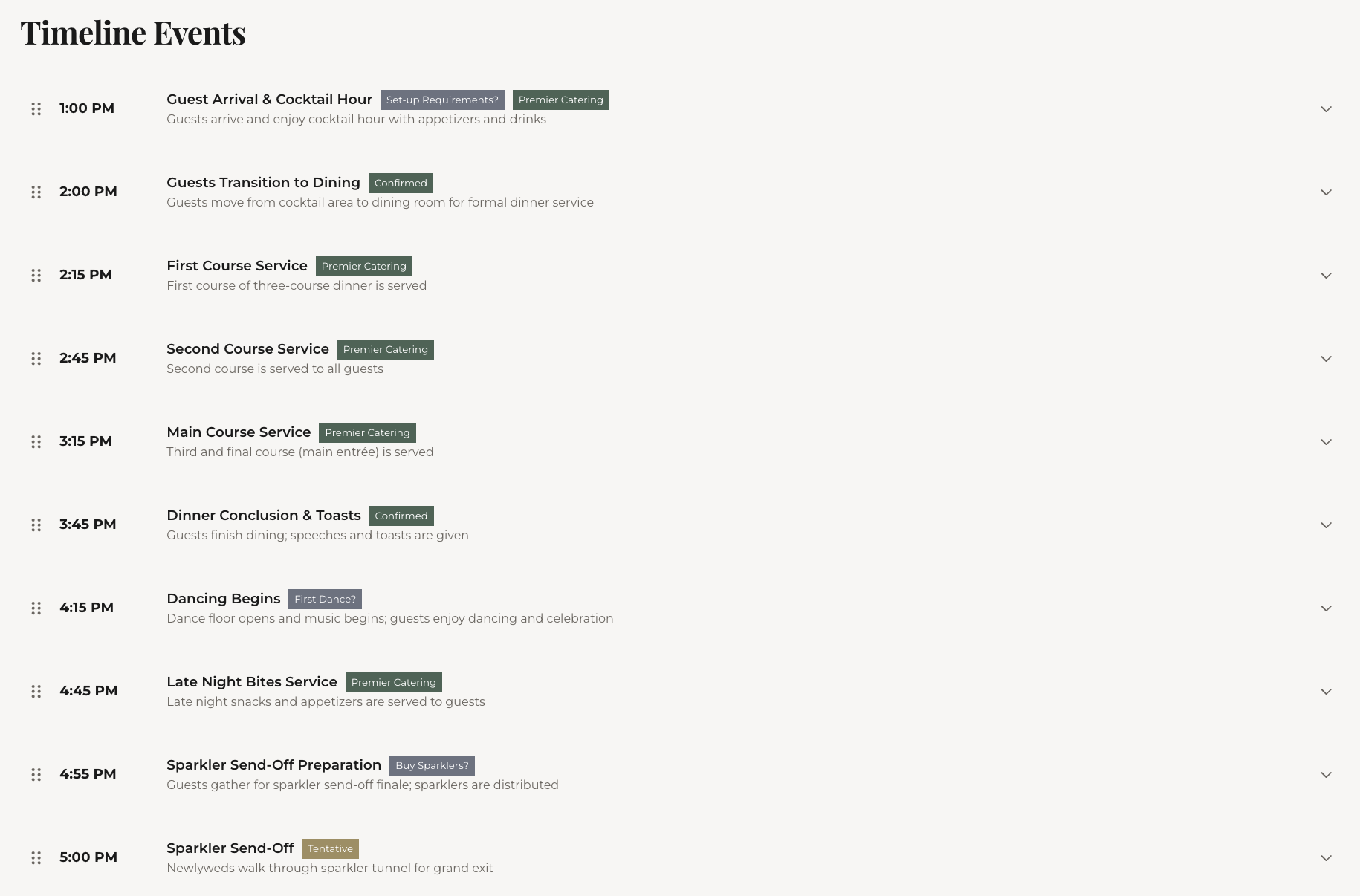
Preset tags
Five preset tags are available out of the box:
- Confirmed — this item is locked in
- Tentative — planned but not finalized
- Needs Follow-up — you need to check on something
- Vendor Pending — waiting on a vendor response
- Rain Backup — this is the backup plan for outdoor items
Click a preset chip to add it to an item. Click again to remove.
Custom tags
Need something more specific? Type a custom tag in the tag input field and press Enter. You can create any tag you want — "VIP Only," "Needs Sound Check," "Photo Op," etc.
Each item supports up to 6 tags. Custom tags can be up to 30 characters.
Where tags appear
- Editor — as colored badges next to the item name in collapsed view, and as editable chips in expanded view
- Exported image — tags render on the timeline image so your team can see status at a glance
Using tags effectively
A few patterns that work well:
- Tag outdoor items with "Rain Backup" and add a description with the backup plan
- Tag items as "Confirmed" as vendors confirm — gives you a quick visual of what's locked vs what's still in flux
- Use "Needs Follow-up" as a to-do flag and clear it once you've handled it
What's next
Need to attach contracts or floor plans to specific items? Learn about file attachments.