Reviewing Questionnaire Submissions
When your client submits their questionnaire, you get a notification email. The submission is also visible in your dashboard under the client's card.

What happens behind the scenes
As soon as your client submits, their responses are used to generate a complete timeline draft. The draft includes realistic items, times, and descriptions based on what the client described — event type, timing, guest count, and specific preferences.
Reviewing the draft
In your dashboard, click on the client's submitted questionnaire. You'll see:
- Client's raw responses — everything they typed, organized by section
- Generated timeline draft — the proposed schedule based on their input

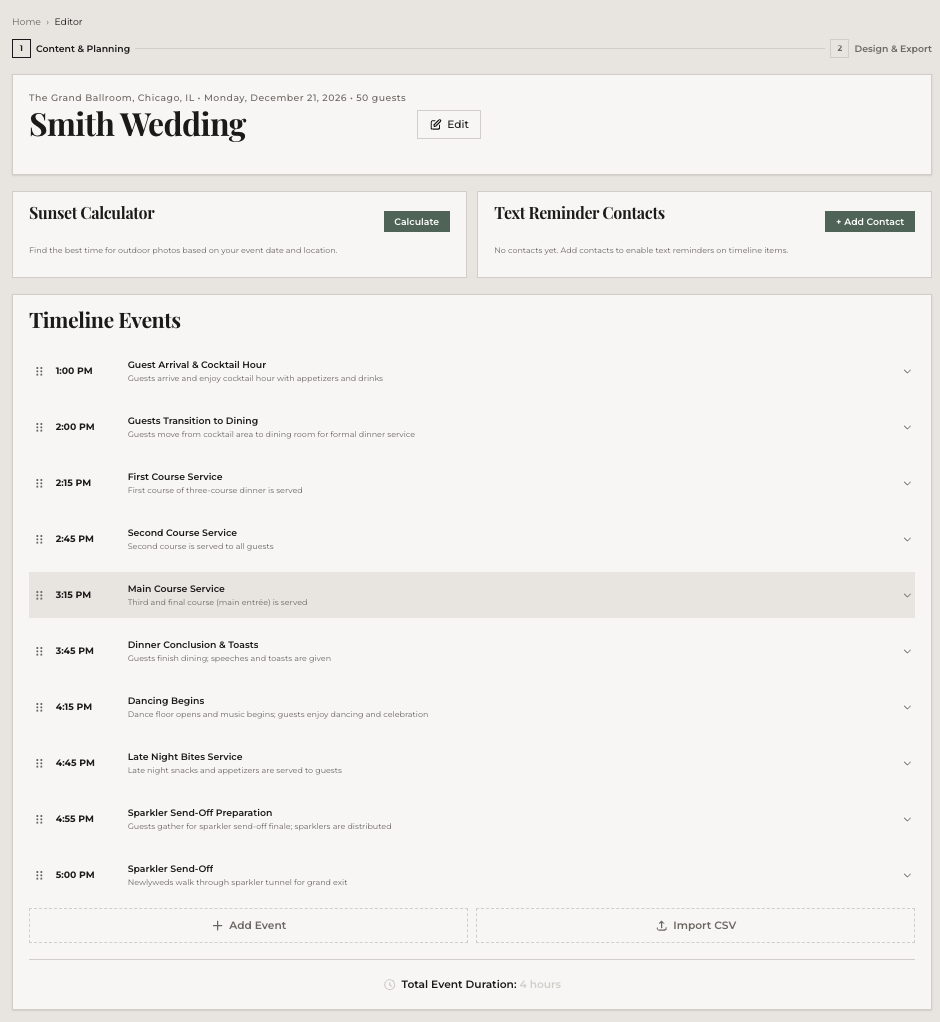
You can accept the draft as-is (it saves to your account as a new timeline), or dismiss it and build from scratch using the client's responses as reference.
Editing after acceptance
Once accepted, the timeline opens in the editor like any other. Add items, adjust times, assign vendors, change the theme — the full editor is available. The timeline is automatically assigned to the client.
If the client re-submits
If your client updates their answers and re-submits, you'll see a new proposed timeline draft. You can accept the updated version or stick with what you have. The old draft is replaced — there's always one latest version.
What's next
Your timeline is taking shape. Time to add your vendors so you can assign them to specific items.