Customizing Your Design
Your timeline has content. Now let's make it look good.
Choosing a theme
Switch to the "Design & Export" tab (step 2 in the editor). You'll see the style controls: theme, layout, and font.
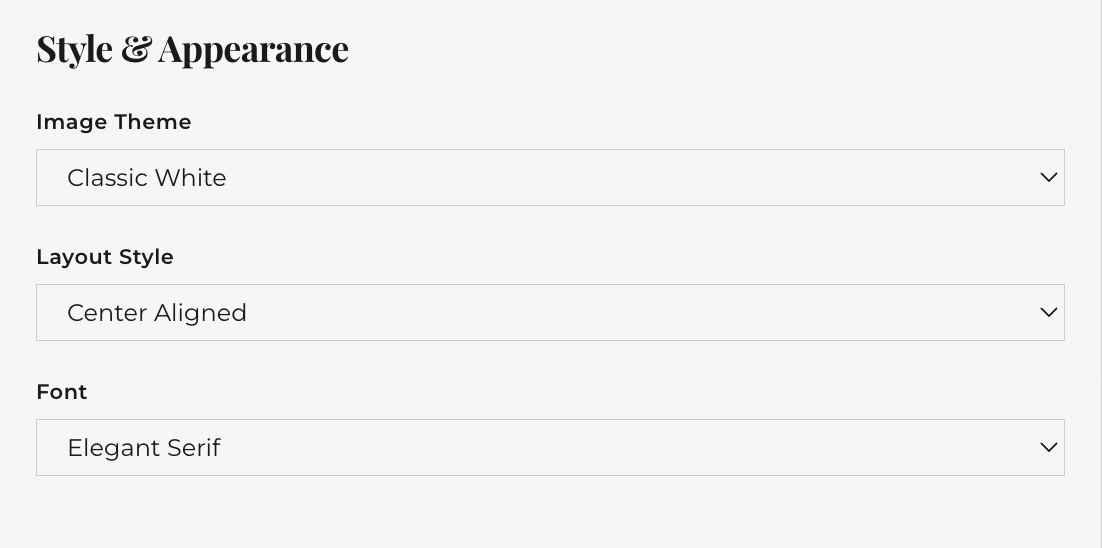
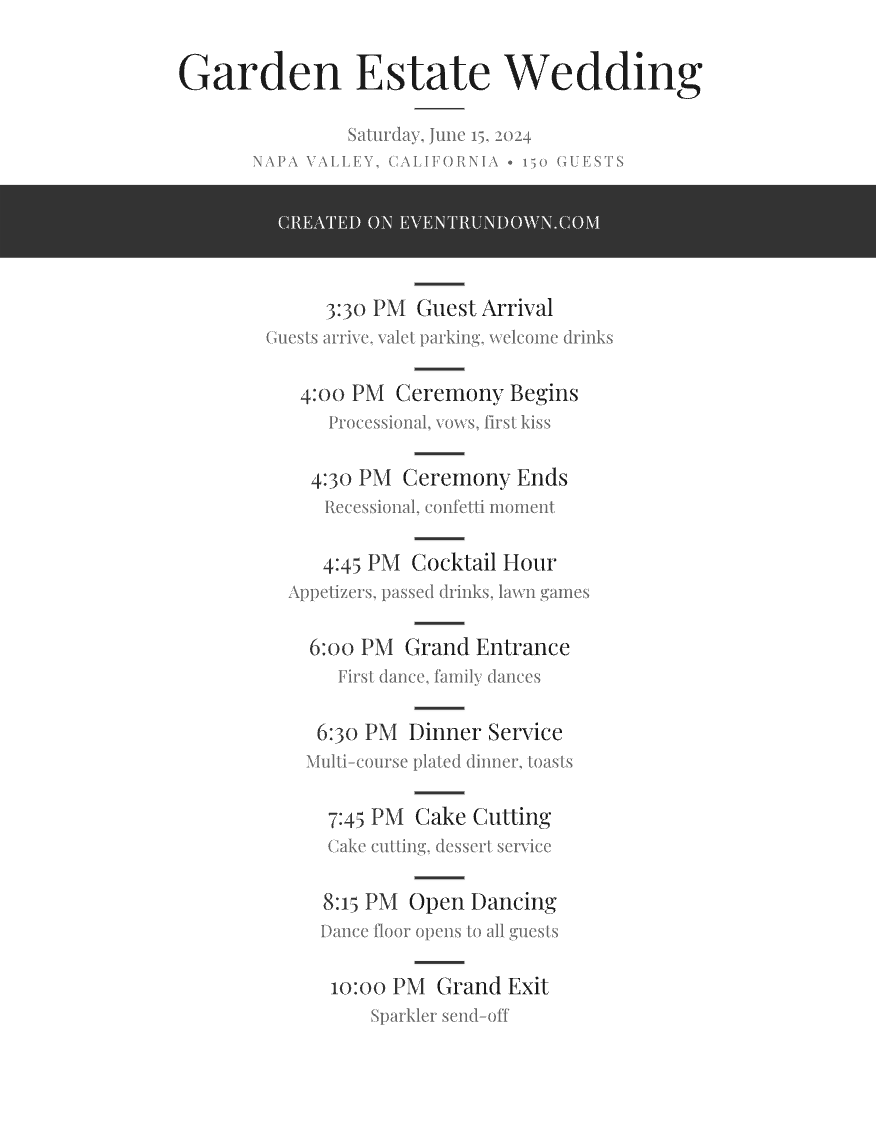
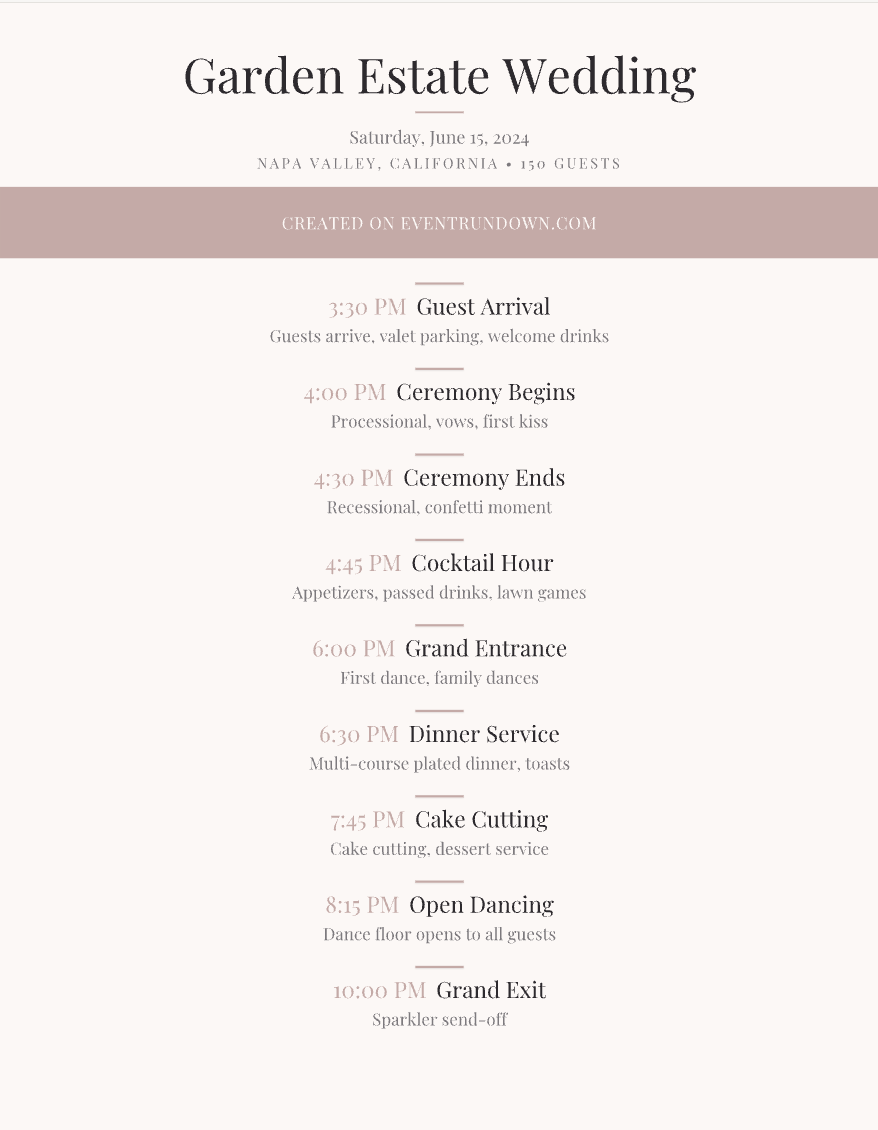
There are several themes to choose from:
- Linen Coast — the default, coastal-grandmother weddings and cottagecore afternoons
- Velvet Opera — deep indigo drama, opera-aesthetic galas and dark-romance ceremonies
- Rose Regency — warm rose tonal palette, regencycore weddings and romantic showers
- Sage Garden — gardencore weddings and botanical luncheons
- Gatsby Gold — glamorous black and gold, art-deco galas and masquerade balls
- Nantucket Slate — preppy coastal, sharp modern events
- And 8 more — Editorial White, Tuscan Villa, Watercolor Petal, Brooklyn Loft, Scandi Chalk, Amber Harvest, Winter Frost, Provence Lavender
Click any theme to preview it instantly. The preview panel updates in real time so you can compare options quickly.
Layout modes
Below the theme picker, choose how items are arranged:
- Left-aligned — clean, single column. The default and most versatile.
- Center-aligned — items centered under a vertical spine. Formal look.
- Compact cards — items as individual cards in a tighter layout. Fits more items per page.
Font presets
Four free font presets change the typography of your exported image:
- Elegant (Playfair Display) — serif, classic
- Modern (Inter) — clean sans-serif
- Friendly (Open Sans) — warm and readable
- Playful (Caveat) — handwritten style, great for casual parties
The live preview
On desktop, the right column shows a live preview of your timeline. It updates when you switch themes, layouts, or fonts. On mobile, tap the "Preview" button to see a full-screen preview.
The preview is lower resolution than the final export — it's just for checking your choices before you download.
What's next
Happy with how it looks? Skip to downloading your timeline, or if you have existing data, learn about importing from a spreadsheet.