Sharing Your Timeline
Your timeline is built and looks good. Now get it in front of the people who need it.
Making it private
By default, saved timelines are public — anyone with the link can view them. If you don't want that, check the "Make timeline private" option in the editor. Private timelines are only visible when you're logged in.

Public share link
Click "Publish" in the editor, then copy the share URL. Anyone with the link can view your timeline in their browser — no account needed.
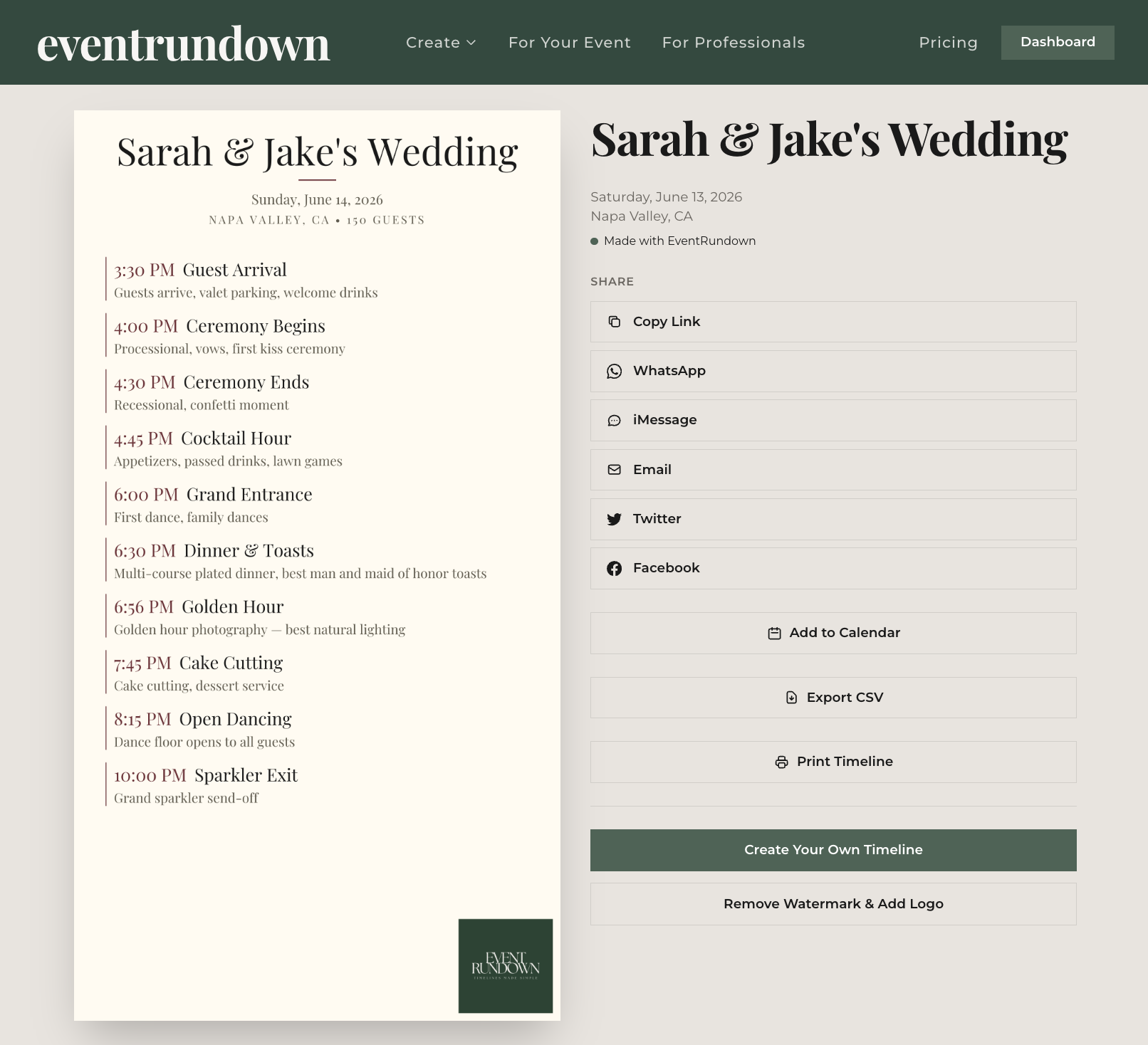
The viewer page shows your full timeline with all items, times, and descriptions. It's mobile-friendly, so guests can pull it up on their phones during the event.
Calendar export (ICS)
In the Publish modal, click "Add to Calendar." This generates an ICS file that imports into Google Calendar, Apple Calendar, or Outlook. Each timeline item becomes a calendar event with the correct time.
CSV export
Need your timeline data back in spreadsheet format? Click "Export CSV" in the Publish modal. You'll get a clean CSV with time, task, and description columns.
Embedding on a website
From your dashboard, each timeline has an "Embed" option in the overflow menu. Copy the embed code and paste it into your website's HTML. The timeline renders in an iframe that auto-adjusts to the container width.
What's next
Ready for a high-quality image you can print or send? Download your timeline as a polished graphic.