Importing from a Spreadsheet
Already have your schedule in a Google Sheet or Excel file? Don't retype it — import it.
Preparing your file
Export your spreadsheet as a CSV file. Your file should have columns for:
- Time — "3:00 PM", "15:00", "Day 2 9:00 AM", etc.
- Task / Event name — what's happening
- Description (optional) — extra details
Column names don't need to match exactly — the importer will ask you to map them.
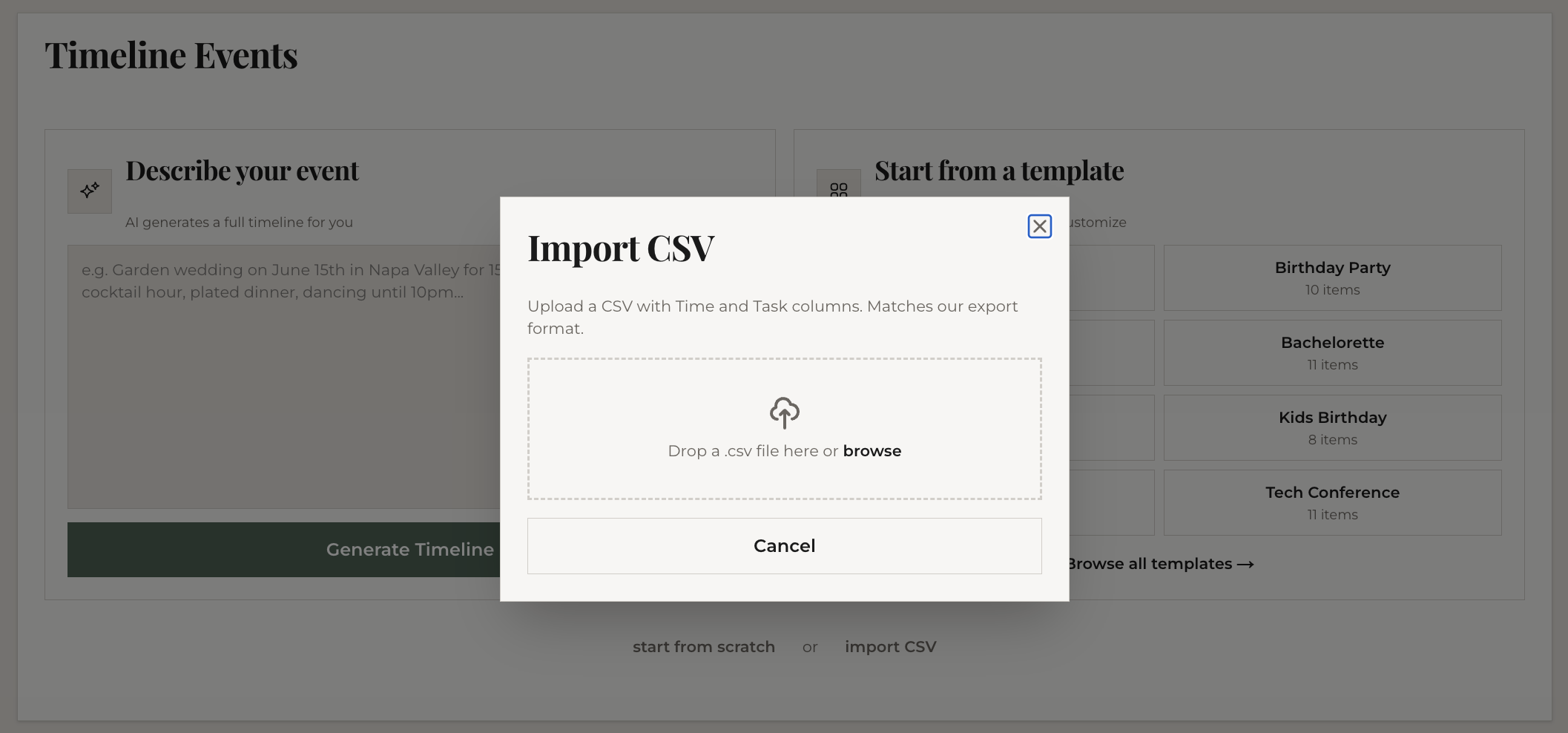
Importing
- In the editor, click the "CSV Import" button near the top of the timeline items section
- Select your CSV file
- Map your columns: tell the importer which column is Time, which is Task, and which is Description
- Click Import
Your items appear in the timeline immediately, sorted by time.
Cleaning up after import
Imported data isn't always perfect. Common fixes:
- Time format — if times imported oddly, click each item to expand and fix the time field
- Duplicate items — delete any rows that got imported twice
- Missing descriptions — add descriptions to important items for context
What's next
Your imported data is ready. Share it with others or download a polished image.